
AssignmentGPT Blogs

How to Make a Flowchart in 5 Minutes Using AssignmentGPT AI

Get an AI summary of this post on:



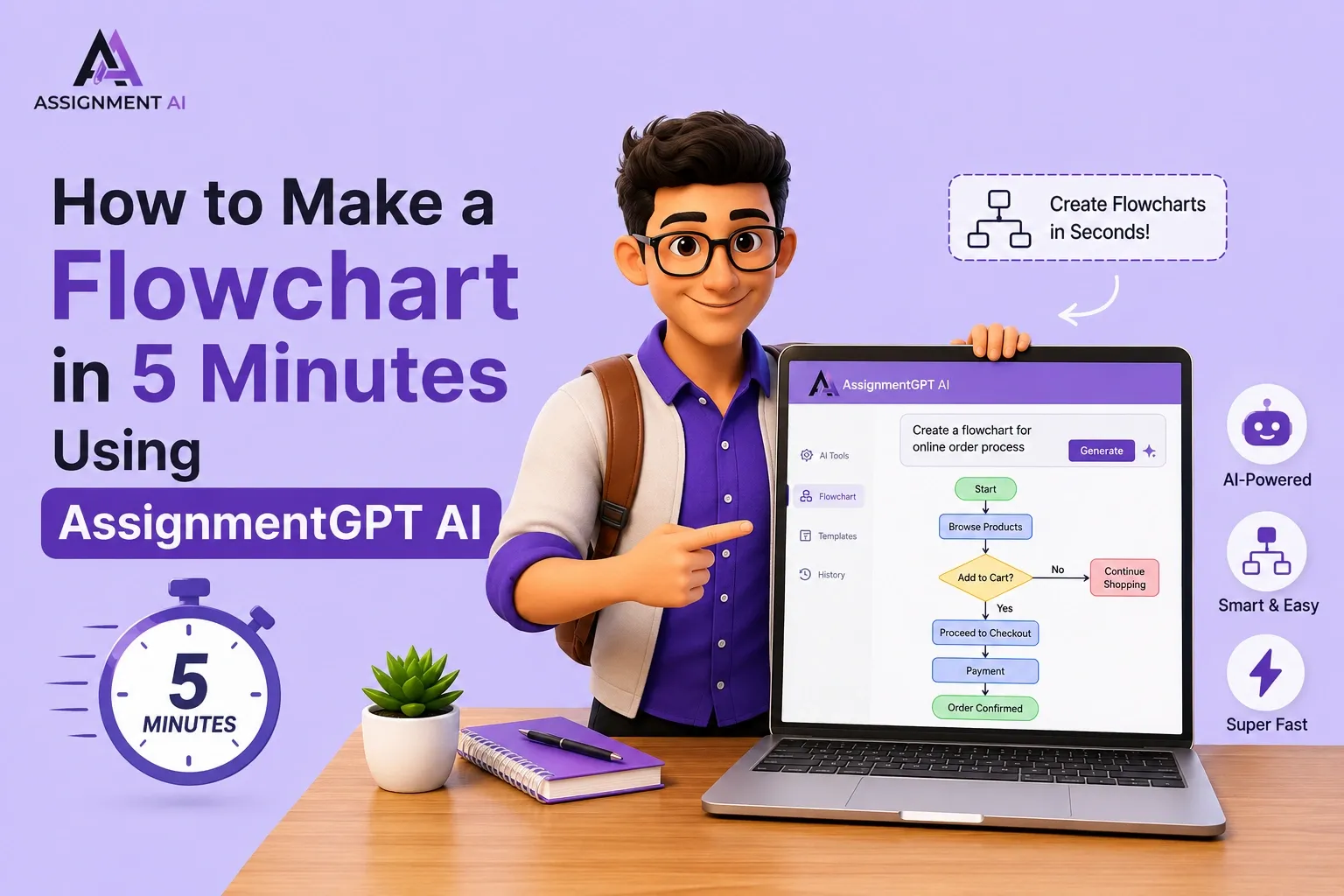
Flowcharts are quicker to understand in simpler steps.
Do you want to make a flowchart sample in a couple of minutes? Assignmnentgpt helps to turn complex multi-step processes which convert their design into powerful visual communication tools that are also available.
Some of the traditional ways of building flowcharts, which give design tools, include dragging shapes, manually connecting arrows, and formatting the text. But if some step would be skip then, can you generate a professional, well-structured flowchart in under five minutes?
AssignmentGPT AI also provides an AI-customized diagram generator that takes your plain language of process and converts it into a structured diagram, which makes ready-to-use prompts.
In this blog, I’ll guide everything steps that you need to know, some of the symbols, steps, real-world examples, and all the best practices.
What Is a Flowchart?
Flowcharts are diagrams that provide a graphical representation of steps, decision points, and actions within a process. Each step is represented by symbols, while arrows indicate the direction of the process flow.
Flowcharts find applications in practically all fields. Within the educational environment, they help to outline the workflow for assignments or learning activities. Business organizations use them to represent processes such as procedures, hierarchical structures of approval, customer journeys, and many others.
Why Flowcharts Are Important for Students, Professionals, and Businesses
For students, flowcharts sort out complicated academic ideas a bit and make it easier to organize assignments, research stuff, and project schedules, so that professors and graders can scan things, without getting lost.
For professionals, flowcharts kind of act like must-have documentation. They help with welcoming new teammates, they keep repeat routines standardized, and they reduce the odds of process mistakes happening, even when things change.
For businesses, flowcharts push operational efficiency higher. If everyone on the team knows the precise steps inside a process, including who owns each part, and what happens when a decision point shows up, then the work runs faster, and overall, there are fewer errors.
How AI Makes Flowchart Creation Faster
Traditional flowchart tools like Visio, Lucidchart, or even PowerPoint still make you place shapes by hand, type the labels yourself, and draw the connectors, one by one. For people without any design experience, this can be really time-consuming and kind of frustrating, too, even when you know what you want.
With an AI-powered tool, the whole equation changes. You didn’t build the diagram step by step in the usual way; instead, you describe what the process does in plain language, and the AI spits out the full flowchart automatically. After that,t you can look it over, tweak it, and export everything pretty fast, like in just a few minutes.
What Is AssignmentGPT AI?
AssignmentGPT AI is a product of AI technology that can help students, professionals, and business organizations produce great content, visuals, and organized documents easily.
Based on highly advanced AI algorithms, the tool covers all aspects from essays to complex visuals such as flowcharts and mind maps.
Its Diagram Generator tool: available at assignmentgpt.ai/diagram-generator is specifically built to take natural-language process descriptions and convert them into clean, structured diagrams instantly.
Key Features for Diagram and Flowchart Generation
AssignmentGPT AI's features for creating diagrams and flowcharts are automatic placement of symbols, flow identification, custom layout options, and export to different formats. The AI determines decision points, process activities, and start or end points based on your description and automatically assigns the corresponding symbols in the proper locations.
Who Should Use AssignmentGPT AI?
AssignmentGPT AI is good for students who need fast visuals for their work, and for professionals who document how things happen for their teams, with all that step-by-step kind of stuff. Also, business analysts use it to explain processes to stakeholders in a clearer way, and software developers like it because they can sketch logic flows first, before they start writing the actual code, or at least that’s the idea.
Why Use AssignmentGPT AI to Create Flowcharts?
Save Time and Reduce Manual Work
Instead of spending 30-60 minutes with conventional software, it now takes less than five minutes. Yodescribe the flowchart, and the artificial intelligence draws the diagram while you spend the rest of your time perfecting it.
No Design Skills Required
AssignmentsGPT AI removes the need for any design skills. It does not require you to have any experience with using programs like Visio or Illustrator. You just need to provide the process in your words, and the AI will make a professional-looking flowchart out of it.
Generate Professional Flowcharts in Minutes
The output is not a rough sketch; it is a clean and properly structured diagram using standardized symbols that meet professional and academic expectations.
Suitable for Academic and Business Projects
Whether you are submitting a university assignment or pitching a process improvement proposal to your management team, the flow charts produced by AssignmentGPT AI are polished enough for both kinds of contexts, even if it feels a bit formal, like, you know.
Understanding Flowchart Symbols Before You Start
Before you generate your flowchart, it helps to understand the usual flowchart symbols, so you can review the AI output thoughtfully and make targeted edits if needed, or not. This way, you’ll catch some tiny issues earlier, and you won’t just blindly accept everything.
Terminator Symbol (Oval/Rounded Rectangle): Start/End
This shape marks the beginning and end of a flowchart. Every flowchart must have at least one Start and one End terminator. Labels typically read "Start," "Begin," or "End."
Process Symbol (Rectangle)
The rectangle represents an action or step in the process, something that gets done. Examples include "Fill out the form," "Calculate the total," or "Send the email."
Decision Symbol (Diamond)
The diamond shape indicates a point where a choice must be made. It typically contains a yes/no question. Two or more arrows leave the diamond, each representing a different possible outcome.
Input/Output Symbol (Parallelogram)
This shape represents data being entered into or produced by the process for example, "Enter username and password" (input) or "Display confirmation message" (output).
Flowline or Arrow Symbol
Arrows connect the shapes and show the direction of the process flow. They tell the viewer where to go next after each step or decision.
Connector Symbol (Circle)
A small circle is used to connect different parts of a flowchart that span multiple pages or sections, preventing the diagram from becoming cluttered with long crossing arrows.
Document Symbol (Rectangle with a wavy bottom)
This shape represents a document or report that is created or used as part of the process for example, "Generate invoice" or "Print report."
Step-by-Step Guide: How to Make a Flowchart in 5 Minutes Using AssignmentGPT AI
Step 1: Access AssignmentGPT AI
Open your browser, and try to go to assignmentgpt.ai. You can sign in with your existing account, or create a free account so you can start right away. There’s no real installation of software needed; it just runs fully in your browser.
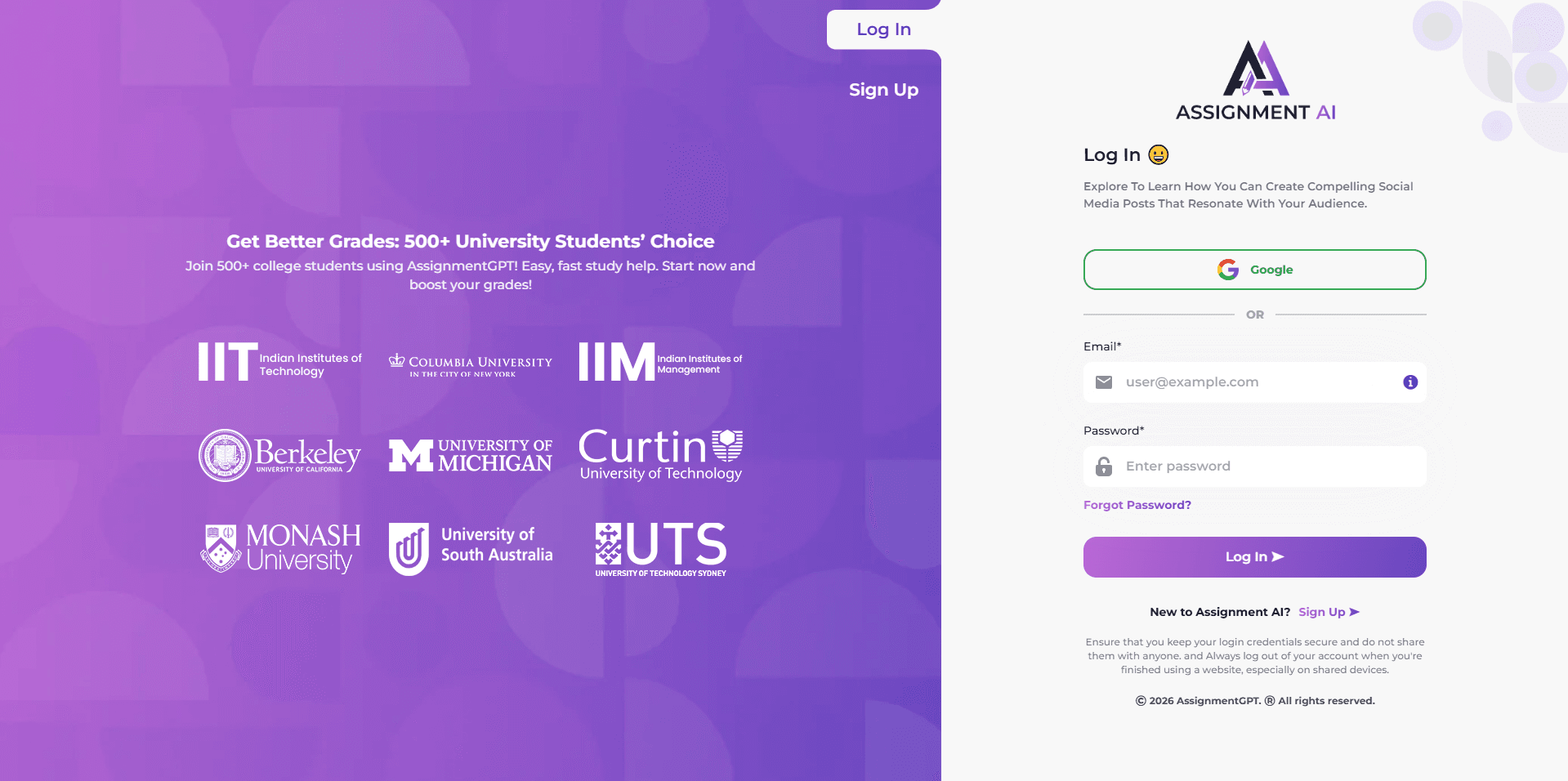
Step 2: Choose the Flowchart Generator Tool
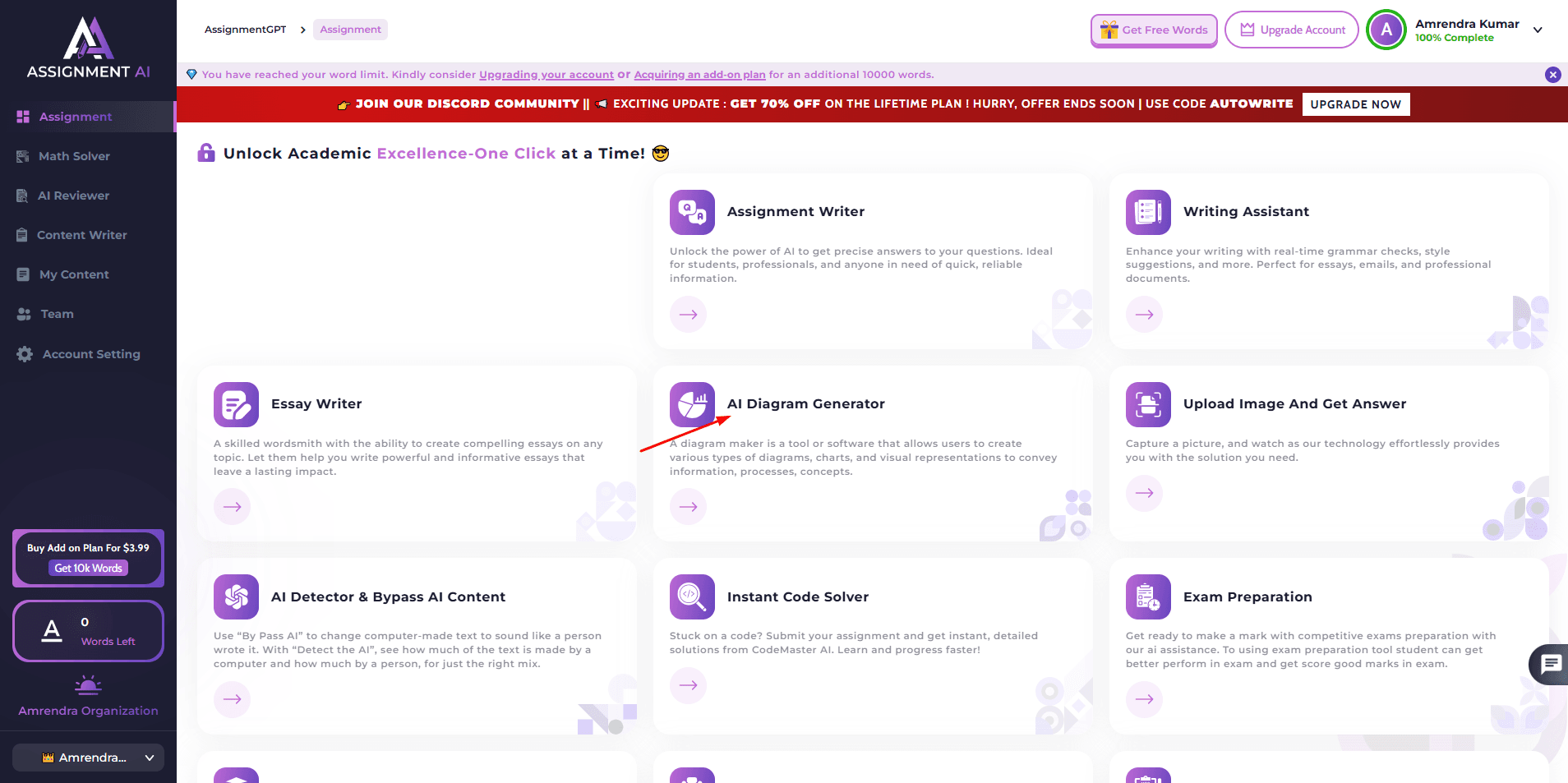
On the main dashboard, or maybe from the navigation menu, head over to the Diagram Generator area at assignmentgpt.ai/diagram-generator. Once you get there, you’ll notice an input space where you can explain your workflow, plus a bunch of choices for the diagram type. Pick Flowchart as the diagram format.
Step 3: Enter Your Process Description
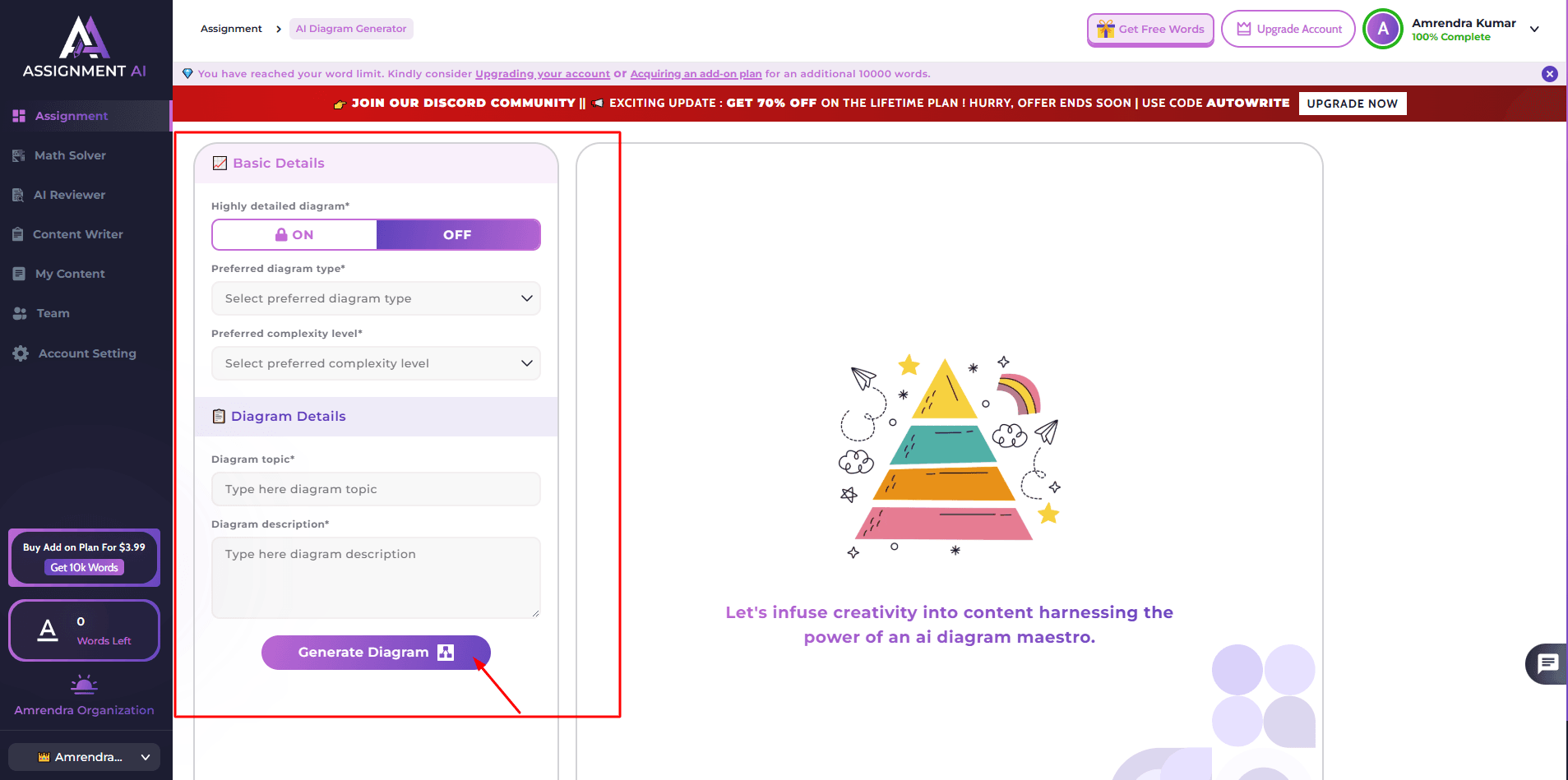
In the input area, write what you’re trying to visualize, like the whole little story of it. Make it readable and in the order it actually happens. No special formatting is required; plain language is totally fine. Like this example:
“A student submits an assignment. The system checks if the file is in the correct format. If yes, the assignment is uploaded, and a confirmation email is sent to the student.
If no, the student is prompted to re-upload in the correct format.”
The more details you add, the more accurate and complete the flowchart that gets created will be. You can also add decision moments, side routes, and the concrete outcomes for each choice.
Step 4: Generate the AI Flowchart
Press the Generate button. The AI processes your description in a few seconds. It pretty much figures out the logical structure of the whole thing, then it gives the right symbols for each stage, and finally, it constructs the full flowchart with arrows that are connected properly, so nothing just floats around.
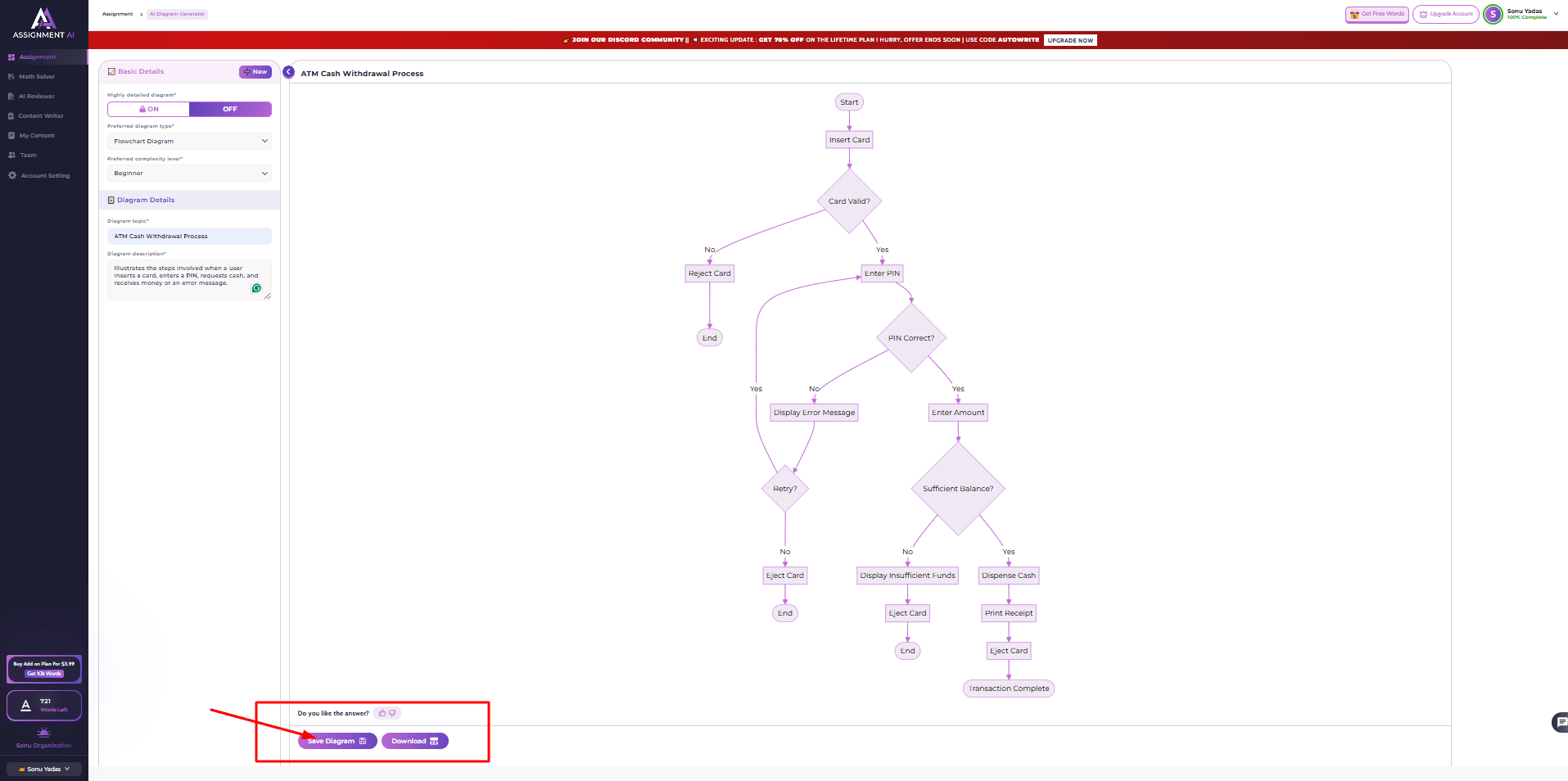
Step 5: Review and Customize the Flowchart
When the flowchart starts showing up, take a second, well, maybe more to look it over carefully, because you want to confirm the logic is correct. Make sure each decision point has the proper branches, like the “yes” goes to the right place and “no” doesn’t wander off somewhere else. Also, verify that the start is clearly labeled, the end is clearly labeled, and that every step is actually named in a clear way, not vague or half there.
With AssignmentGPT AI, you can also adjust the labels, move the elements around, change the colors, and modify the whole layout to fit your preferences or your branding, kinda like fine-tuning a small mechanism, yes?
Step 6: Export or Download Your Flowchart
When you are pretty satisfied with the result, go ahead and export the flowchart in whichever format you prefer. AssignmentGPT AI supports many usual formats like PNG, PDF, or SVG, so it’s simple to slip the diagram into presentations, documents, reports, or even websites.
Example 1: Student Assignment Submission Flowchart
Process Breakdown
A student logs into the portal, chooses the assignment, and uploads the file, then the system does a quick format check. If the format is good, then it gets submitted right away, and a confirmation message is sent. If it isn’t, the student has to upload it again, kind of redoing the process until it passes.
AI-Generated Flowchart Structure
Start → Log in to portal → Select assignment → Upload file → Decision: Correct format?
Yes → Submit assignment → Send confirmation email → End
No → Prompt student to re-upload → Return to the Upload file step
Example 2: Employee Leave Approval Flowchart
Process Breakdown
An employee submits a leave request, then the manager will look it over, kind of, and decide either to approve or reject it. If it gets approved, HR updates the system and then notifies the employee. If it gets rejected, the employee gets notified too, but with a reason that explains why, and it’s all kept in the proper workflow.
AI-Generated Flowchart Structure
Start → Employee submits leave request → Manager reviews request → Decision: Approved?
Yes → HR updates records → Notify employee of approval → End
No → Notify employee of rejection with reason → End
Example 3: Online Order Processing Flowchart
Process Breakdown
A customer places an order online. The system checks inventory for real, and if the item is there, it goes on to the payment step. Once the payment is successful, the order gets confirmed and then shipped. If the payment does not go through, then the customer gets notified, kinda right away. But if the item is out of stock, the customer is informed as well.
AI-Generated Flowchart Structure
Start → Customer places order → Decision: Item in stock?
Yes → Process payment → Decision: Payment successful?
Yes → Confirm order → Ship item → End
No → Notify payment failure → End
No → Notify out of stock → End
Common Mistakes to Avoid When Creating Flowcharts
Using Too Many Decision Boxes
Decision diamonds bring in that extra, not-needed sometimes, complexity. They should be used only when there really is a genuine choice or condition inside the flow. If you add too many decision moments, the whole chart gets tough to follow, quickly.
Creating Complex Process Paths
If your flowchart starts getting all tangled, like crossing arrows everywhere and loops that go on and on, you might want to split it into smaller sub-processes using connector symbols. In general, less clutter makes it easier to read, understand, and follow. It kinda feels simpler, even if you keep the same logic.
Ignoring Standard Symbols
If you use the wrong shapes for different steps, it sort of breaks the whole chart, and it looks less professional in a way. Better to stick with the standard symbols, like, so that anyone who knows flowchart conventions can read your diagram right away. Otherwise,se it becomes confusing, and you get this weird delay in understanding, even when the logic is correct.
Lack of Clear Start and End Points
Each diagram has to start and stop in a really obvious way, you know, with the right terminators in place. If you forget those terminator symbols, it’s a pretty common beginner issue, and people watching the flow just get stuck wondering where the whole process really kicks off, or where it actually concludes.
Best Practices for Creating Professional Flowcharts
Keep the Flow Direction Consistent
Most professional flowcharts flow from top to bottom or left to right. Mixing directions creates confusion. Establish a direction at the start and stick to it throughout.
Use Standardized Symbols
Always use accepted symbols for each type of step. If you are generating with AssignmentGPT AI, the tool handles this automatically — but when making manual edits, keep the conventions in mind.
Write Clear and Concise Text
Label each shape with short, action-oriented text. Avoid long sentences inside shapes. "Check inventory" is better than "The system will now check whether inventory levels are sufficient."
Minimize Crossing Lines
Arrows that cross each other are difficult to follow. Rearrange shapes or use connectors to route the flow cleanly without overlaps.
Review the Process Logic
Before finalizing, trace through the entire flowchart manually. Follow every decision branch to its end and make sure no step leads to a dead end (unless it is a valid terminator).
AssignmentGPT AI vs Traditional Flowchart Creation Methods
| Feature | AssignmentGPT AI | Traditional Tools |
|---|---|---|
| Creation Speed | Under 5 minutes | 30–90 minutes |
| Ease of Use | No design skills needed | Moderate to steep learning curve |
| Automation | Fully AI-generated | Fully manual |
| Learning Curve | Minimal | Moderate to high |
| Customization | Post-generation editing | Full manual control |
Real-World Use Cases of AI Flowcharts
Education and assignments:
Students use AI-generated flowcharts to kinda show research processes, algorithm logic, or historical event timelines, for class submissions and also for presentations.
Business process documentation:
Operations teams write down standard procedures so every team member follows the same routine, which helps lower mistakes and speed up onboarding time.
Project management:
Project managers lay out task dependencies, approval gates, plus escalation paths, so even the more complex projects stay on track.
Software development:
Developers rely on flowcharts to outline algorithm logic, database query flows, and the system architecture, before anyone types out a single line of code.
Customer support workflows:
Support teams craft decision tree flowcharts that steer agents through troubleshooting steps, which cuts the resolution time a fair bit, and it also boosts customer satisfaction.
Benefits of Creating Flowcharts with AssignmentGPT AI
Faster Workflow Visualization:
Convert a process description into a diagram in seconds rather than hours.
Improved Team Communication:
A clear visual diagram eliminates ambiguity and ensures every team member understands the process the same way.
Better Decision-Making:
Seeing all decision points laid out visually helps teams identify process inefficiencies and make smarter improvements.
Increased Productivity:
Less time spent building diagrams means more time spent on the work that actually matters.
Easy Editing and Updates:
When a process changes, you can quickly regenerate or edit the flowchart rather than rebuilding it from scratch.
Conclusion
Flowcharts are kinda indispensable tools for students, professionals, and even businesses who have to communicate complex processes in a clear and pretty efficient way.
Getting a grip on the standard symbols from the terminator oval to that decision diamond helps you review and interpret almost any flowchart with more confidence. You know, without second-guessing yourself.
AssignmentGPT AI’s diagram generator kinda removes the most time-consuming part of the whole thing, manual design work, basically. Just by describing your process in plain language, you get a professional flowchart that’s well structured in just minutes.
FAQs
1. What is a flowchart and why do people use it?

2. How does AssignmentGPT AI help you make a flowchart?
3. Can I make a flowchart without any design experience?
4. What flowchart symbols should I know before getting started?
5. How long does it take to create a flowchart using AssignmentGPT AI?
6. What formats can I download my flowchart in from AssignmentGPT AI?
7. Is AssignmentGPT AI's diagram generator free to use?
8. What are some real-life examples where flowcharts are useful?
9. What common mistakes should I avoid when making a flowchart?
10. How is AssignmentGPT AI different from traditional flowchart tools like Visio?
Digital Marketer | SEO
I’m Dipak Dangodara, the SEO Expert at AssignmentGPT AI. I manage and optimize the website’s search engine presence with a strong focus on organic growth, visibility, and performance. My work includes technical SEO, keyword research, on-page and off-page optimization, and tracking SEO performance to align with search engine best practices.
At AssignmentGPT AI, my goal is to build sustainable rankings, improve traffic quality, and ensure the platform delivers long-term value through effective SEO strategies.
Master AI with
AssignmentGPT!
Get exclusive access to insider AI stories, tips and tricks. Sign up to the newsletter and be in the know!
Transform Your Studies with the Power of AssignmentGPT
Empower your academic pursuits with tools to enhance your learning speed and optimize your productivity, enabling you to excel in your studies with greater ease.
Start Your Free Trial ➤Related Articles

Free vs Paid AI Homework Tools for Students in 2026
Compare free and paid AI homework tools in 2026 to find the best option for saving time, money, and improving study support.

10 AI Tools Every College Student Should Use in 2026
Discover 10 powerful AI tools every college student should use in 2026 to study smarter, save time, boost productivity, improve learning, & achieve better grades.

AssignmentGPT AI Citation Generator: Format Citations Fast
Create accurate APA, MLA, Chicago, and Harvard citations instantly with AssignmentGPT AI's free AI citation generator.
Is Turnitin's AI Detector Disabled in 2026? Full Guide
Turnitin's AI detector isn't gone, but Waterloo, Curtin, Yale and others have disabled it. Here's why, and what it means.

AI Homework Helpers: How They Are Changing Study Habits
AI homework helpers explain concepts step by step, helping students learn faster, study smarter, and build lasting confidence.

Best Flowchart Software Tools for Students and Developers
Compare the best flowchart tools for students, developers & engineers to create clear diagrams fast.
Start your success story with Assignment GPT! 🌟 Let's soar! 🚀
Step into the future of writing with our AI-powered platform. Start your free trial today and revolutionize your productivity, saving over 20 hours weekly.
Try For FREE ➤